We Use Cookies
We use cookies to enhance your browsing experience, analyze site traffic, and personalize content. By clicking "Accept All", you consent to our use of cookies. You can customize your preferences or reject non-essential cookies.
Learn more about our cookie policyOpen Terminal in AI·Collab: Local tools, real files, and shell execution inside chat
Open Terminal connects your Open WebUI chat to a local Open Terminal instance — so the assistant can run commands, iterate on errors, and use a built-in file browser. This guide shows the exact UI path (Bearer auth), what you should see when it works, Linux/WSL2 and macOS setup via our hosted installers, and why phones may show a console connection warning even when chat works.
What this unlocks (in one sentence)
Instead of only chatting about your repo, Open Terminal lets the model operate it: run tests, inspect logs, install dependencies, and manage files — with UI affordances built into Open WebUI. This is powerful. Treat it like giving an assistant remote hands on your machine: use it on trusted devices, rotate keys if exposed, and disable the integration when you do not need it.
See it in action
Short demo: enabling the integration, connecting Bearer auth, using the terminal selector, and browsing files — all inside Open WebUI on AI·Collab.
If you only see a gray box: typical causes include the YouTube iframe blocked until cookies are accepted, a wrong or removed video ID, a Content-Security-Policy frame-src restriction, lazy-load never firing, or ad/privacy blockers. Fix by accepting cookies and retesting; open DevTools → Console / Network on the embed, confirm the iframe src and any blocked requests; and prefer a plain youtube-nocookie.com/embed/VIDEO_ID iframe. If embeds stay flaky, fall back to the thumbnail link and “Watch on YouTube” only.
Watch on YouTubeWhere to configure it (and what the screenshots mean)
In Open WebUI, Open Terminal is configured under the user Integrations area (not "Tool Servers"). Enable the integration, open the gear menu, and enter your local URL plus the Bearer token.
Integrations

You should see Open Terminal listed under Integrations. The toggle should be ON once you are actively using a connection.
Connection URL and Bearer token
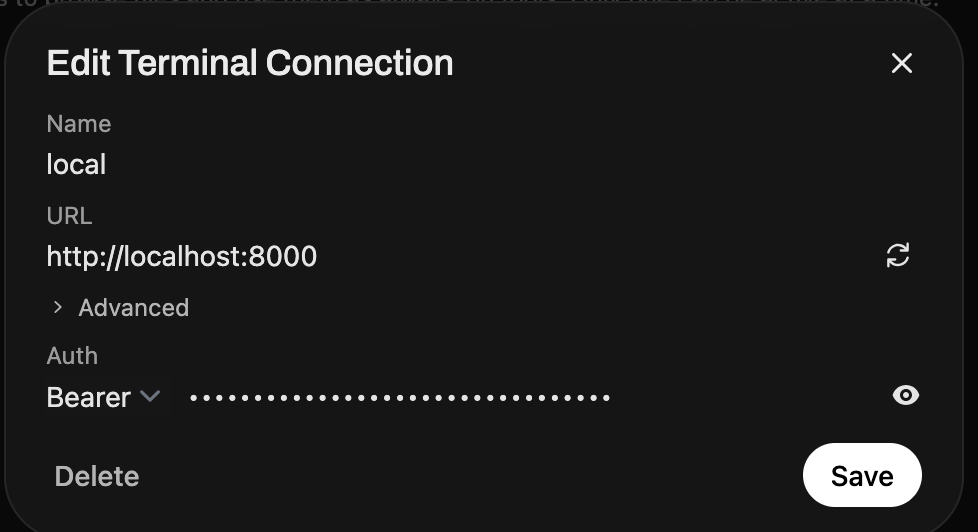
Typical local setup uses http://localhost:8000 (or your LAN IP if needed). Paste the API key into the Bearer field.
Terminal selector in chat

When connected, the chat UI exposes a terminal selector — pick the active instance for the conversation.
Files side panel
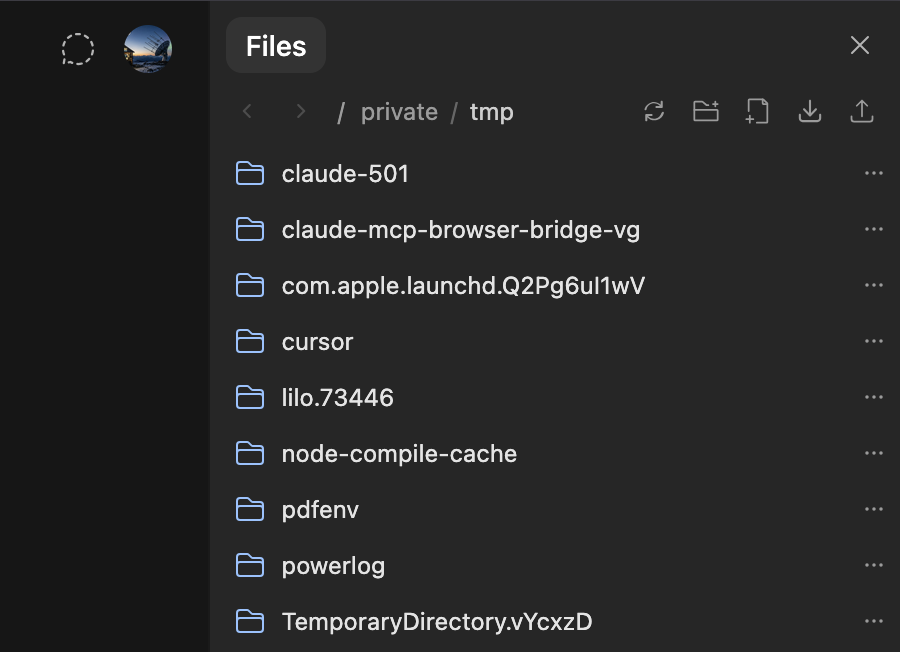
The file browser opens beside chat so you can upload/download and navigate folders the assistant can access.
What “full file access” and a real terminal enables
Capabilities depend on what your Open Terminal runtime can reach on disk and on the network. In practice, teams use it for:
- Run real shell commands and dev tooling (git, build systems, language runtimes)
- Read and modify project files with tight feedback loops (run → error → fix)
- Download assets, transform datasets, generate charts/files, and share artifacts via the file browser
- Automate multi-step workflows that are awkward in a plain chat-only UX
Mobile apps/browsers: expected limitations
On a phone (installed PWA/app or mobile browser), you may see an error that the console/terminal cannot connect — even when normal chat and other product features work. That is usually expected: your phone is not the machine running the local Open Terminal listener, and local network paths like http://localhost:8000 refer to the phone itself — not your laptop. For mobile chat, continue using AI·Collab normally; use Open Terminal from a desktop session where your local service is reachable.
Security posture (plain language)
Open Terminal is an intentionally high-trust integration. - Treat the Bearer token like a password. - Prefer narrow CORS allowlists for your Open Terminal service when you can. - Only run it on machines you control, and disable the integration when not needed. - Remember that “file browser” means the assistant can read and write where your terminal user can read and write.
Installer downloads (mirrored on aicollab.app)
We host copies of Flaiwheel helper scripts that provision a local Open Terminal service and print a fresh API key on install. Choose the section for your operating system.
Linux / WSL2 (systemd --user)
This script provisions a systemd user service (Linux and WSL2 with systemd enabled).
Recommended upstream one-liner (HEAD — follows default branch)
curl -fsSL -o install-open-terminal-systemd-user.sh \
  https://raw.githubusercontent.com/dl4rce/flaiwheel/HEAD/scripts/install-open-terminal-systemd-user.sh
chmod +x install-open-terminal-systemd-user.sh
./install-open-terminal-systemd-user.sh
macOS (user LaunchAgent)
This script installs a user LaunchAgent (not a system daemon). Do not use sudo. User LaunchAgents load in your own login/GUI session; running the installer as root can break ownership under ~/.config/flaiwheel and ~/Library/LaunchAgents and cause launchctl load errors. Run it as your normal macOS user.
Recommended upstream one-liner (main branch)
curl -fsSL -o install-open-terminal-launchagent.sh \
  https://raw.githubusercontent.com/dl4rce/flaiwheel/main/scripts/macos/install-open-terminal-launchagent.sh
chmod +x install-open-terminal-launchagent.sh
./install-open-terminal-launchagent.sh
Integrity: a SHA-256 only matches one exact file revision. - After each mirror update, replace the published hashes below with the SHA-256 of the exact bytes you serve at /scripts/install-open-terminal-systemd-user.sh (Linux) and /scripts/install-open-terminal-launchagent.sh (macOS). - For documentation URLs that must not move, pin a commit SHA (or release tag) in the curl URL instead of HEAD or main. - At last mirror (2026-04-19): Linux matched upstream bytes SHA-256 0e6ca01f40db112282d72c03b3261390be9508af9cbc649835ad18be70b848ff; macOS matched upstream bytes SHA-256 b4dff4a780bcc52dd68aec48d0551e50263689e513fdf887f8fb070e6b797e41.
Official Open WebUI docs (deep dives)
These pages are the best place to learn feature intent, constraints, and upstream behavior:
Related on AI·Collab
If you are adopting Open Terminal, these product pages are the natural “next clicks”:
FAQ
Open Terminal is an upstream Open WebUI capability; AI·Collab hosts mirrored installers for convenience. Verify current product behavior in Open WebUI release notes and your organization policies before enabling high-trust tooling.
Related Articles
Skills: Reusable AI Instructions for Better Responses
Learn how Skills work — markdown-based instruction sets you attach to models or invoke in chat. Code review guidelines, writing rules, troubleshooting playbooks.
Read moreAGENTIC AI: Models That Think, Remember & Research Autonomously
Discover how frontier AI models can now manage your memories, search knowledge bases, and access chat history—without you asking.
Read moreTwo Ways to Search the Web with AI: Native vs Plugin
Understand the difference between Native Agentic Search (Brave) and Exa Plugin Search. Learn which to use for best results.
Read moreReady to Experience 300+ AI Models?
Get started today. Access models from OpenAI, Google, Anthropic, Grok and more.
GDPR compliant · Zero data retention · Cancel anytime