We Use Cookies
We use cookies to enhance your browsing experience, analyze site traffic, and personalize content. By clicking "Accept All", you consent to our use of cookies. You can customize your preferences or reject non-essential cookies.
Learn more about our cookie policyAI·Collab on Your Phone: Install the Mobile App in 60 Seconds
No App Store, no download, no waiting. Add AI·Collab to your home screen and access 300+ AI models — GPT-5, Claude, Gemini, and more — right from your pocket.
Your AI Workspace, Now in Your Pocket
Great news: you can now use AI·Collab as a full mobile app on your iPhone or Android device. No App Store download required — just add it to your home screen directly from your browser. The app gives you the same powerful experience as the desktop version: 300+ AI models, all your chats, knowledge bases, and settings — optimized for mobile with a native app feel.
What is a Progressive Web App (PWA)?
A PWA is a website that can be installed as an app on your device. It looks and feels like a native app — with its own icon, full-screen mode, and no browser chrome — but requires no App Store approval or download. It's always up to date because it loads from the web.
Step-by-Step: Install on iOS (iPhone / iPad)
Follow these 10 steps to install AI·Collab as a mobile app. The entire process takes less than 60 seconds.
Open Safari & Navigate
Open Safari on your iPhone or iPad and go to chat.aicollab.app. You'll see the browser menu — tap the Share button (square with arrow) or the three dots for more options.
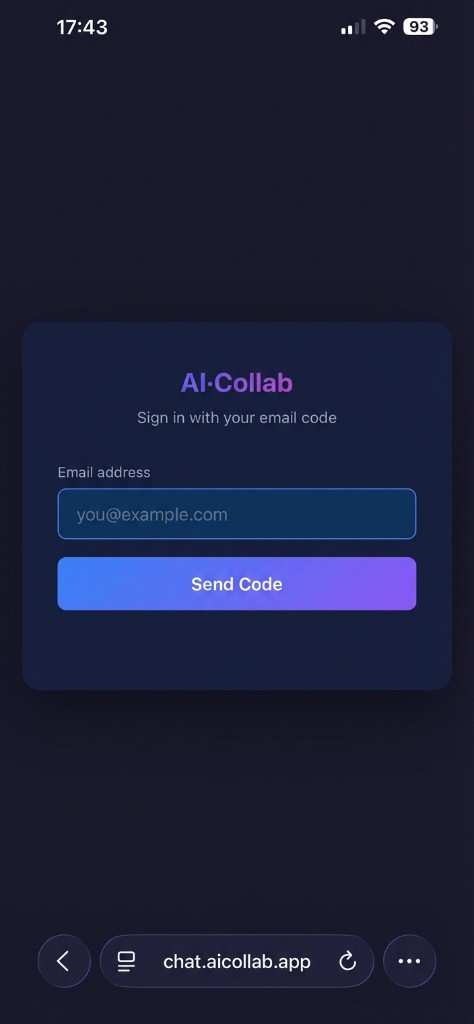
Tap Share in Safari
In Safari, tap the Share icon at the bottom of the screen (square with an upward arrow). This opens the iOS Share Sheet with all available actions.
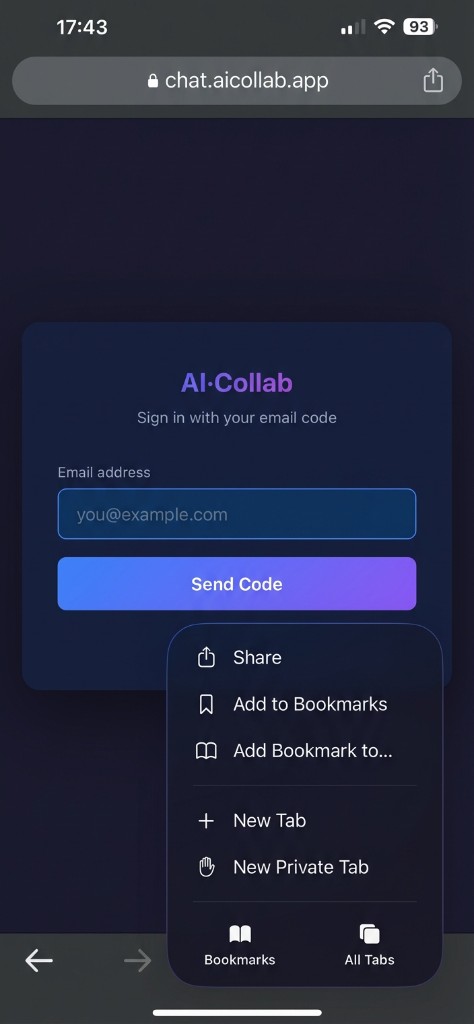
Click 3 dots for more options
In Safari, tap the "3 dots" at the bottom of the screen. This opens the iOS Share Sheet with all available actions.
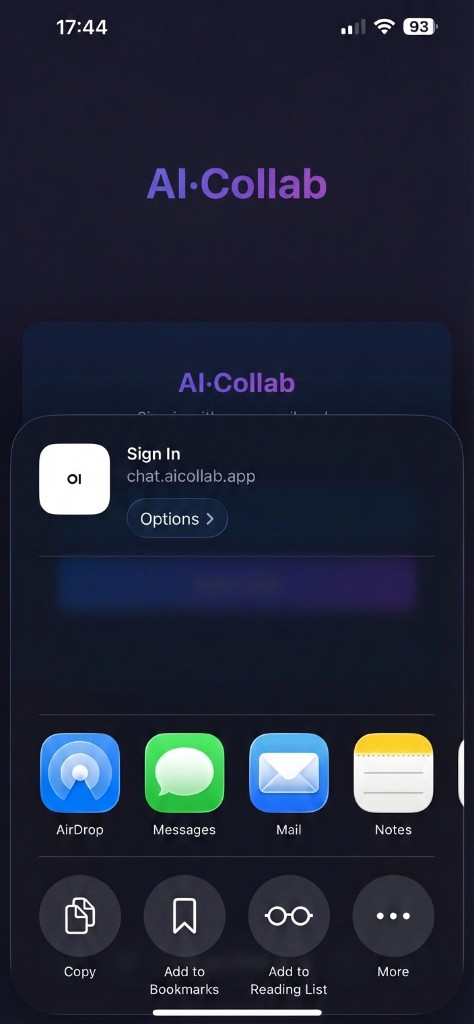
Select 'Add to Home Screen'
In the Share Sheet, scroll down and tap 'Add to Home Screen'. If you don't see it immediately, scroll through the list of actions — it's usually in the lower section.
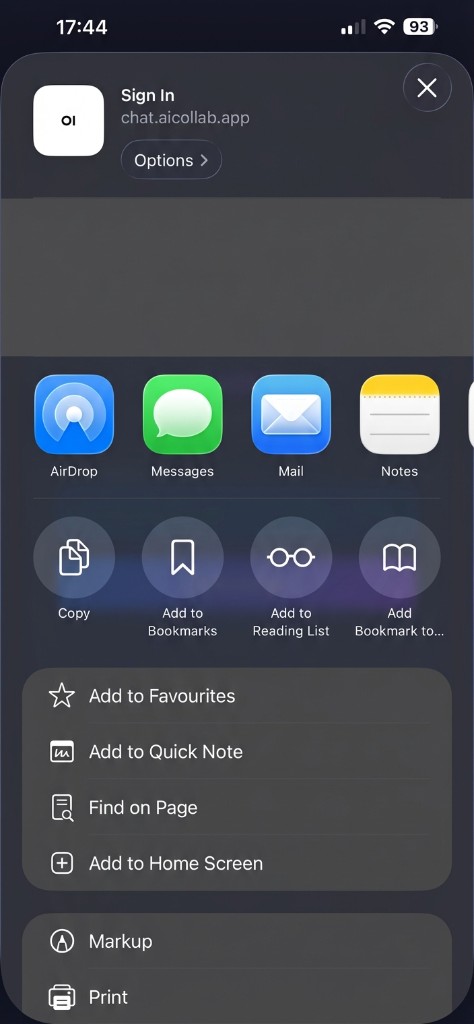
Name Your App & Confirm
iOS shows a preview with the app name and icon. You can change the name if you like (e.g. 'AIcollab' or 'AI Chat'). Tap 'Add' in the top-right corner to install.
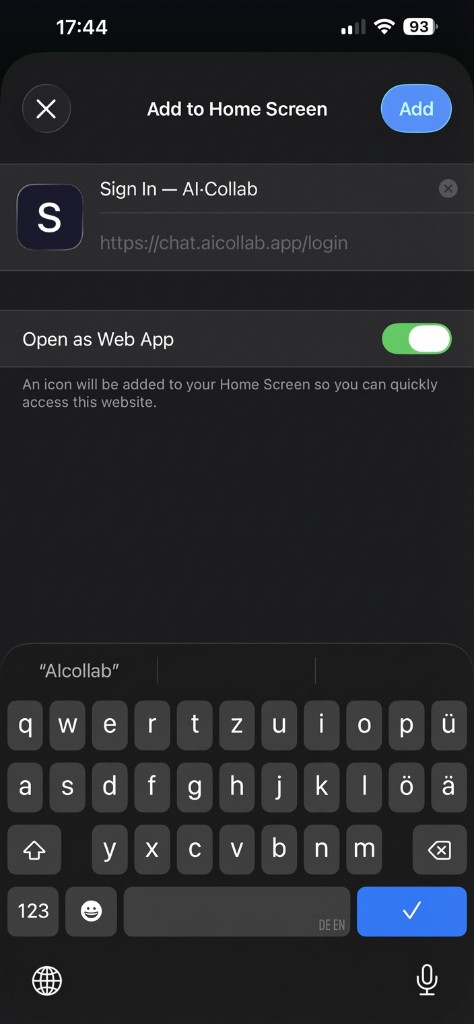
Confirm Installation
iOS confirms the installation. The app icon will be added to your home screen. You can see the preview of how the app will appear.
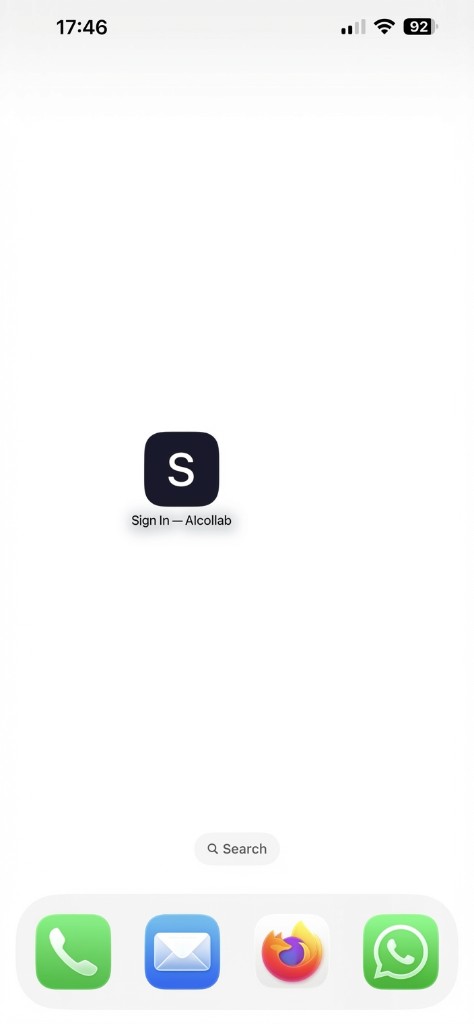
App Installed on Home Screen
Done! The AI·Collab app icon now appears on your home screen just like any other app. Tap it to open AI·Collab in full-screen mode — no browser bars, no distractions.
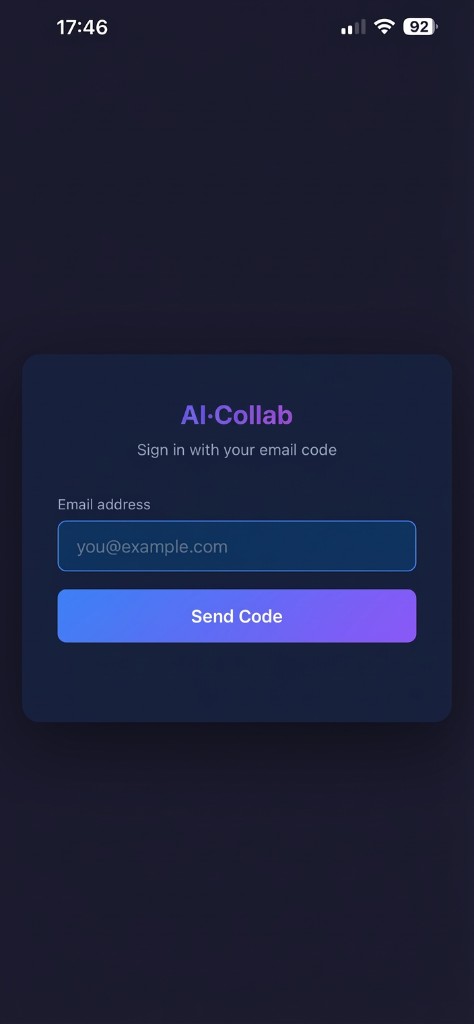
Enter Your Email & Request Code
Open the app and enter the email address you registered with at aicollab.app. Tap 'Send Code' and wait for the 6-digit verification code to arrive in your inbox. If the code doesn't arrive, you can resend it after 60 seconds.
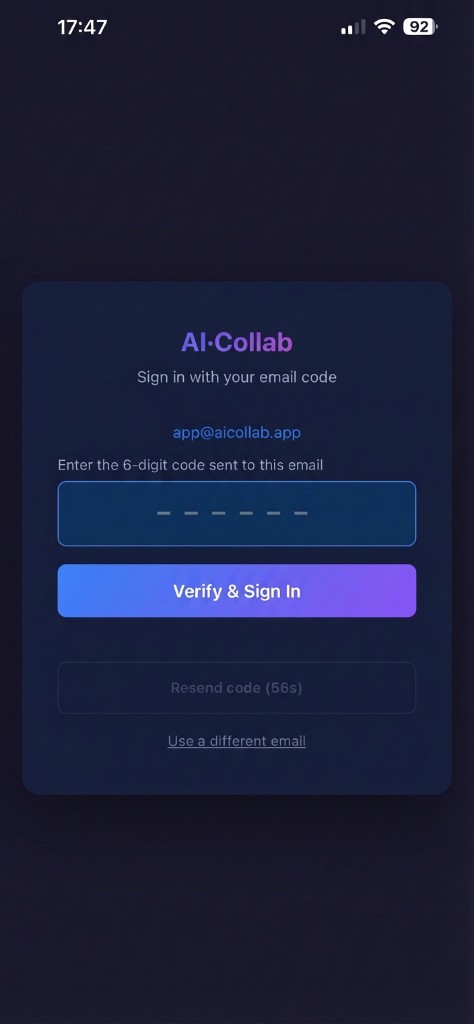
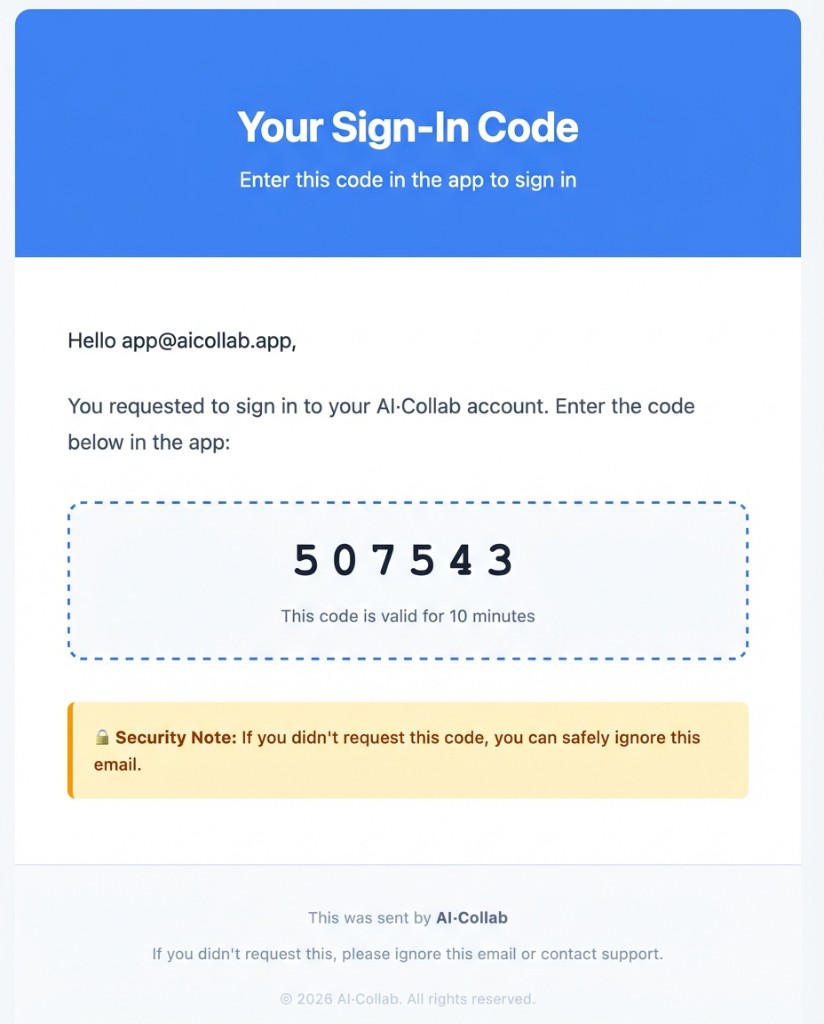
Check Your Email for the Code
Within seconds, you'll receive an email from AI·Collab with your 6-digit sign-in code. The code is valid for 10 minutes. If you don't see it, check your spam/junk folder — or tap 'Resend code' after 60 seconds.
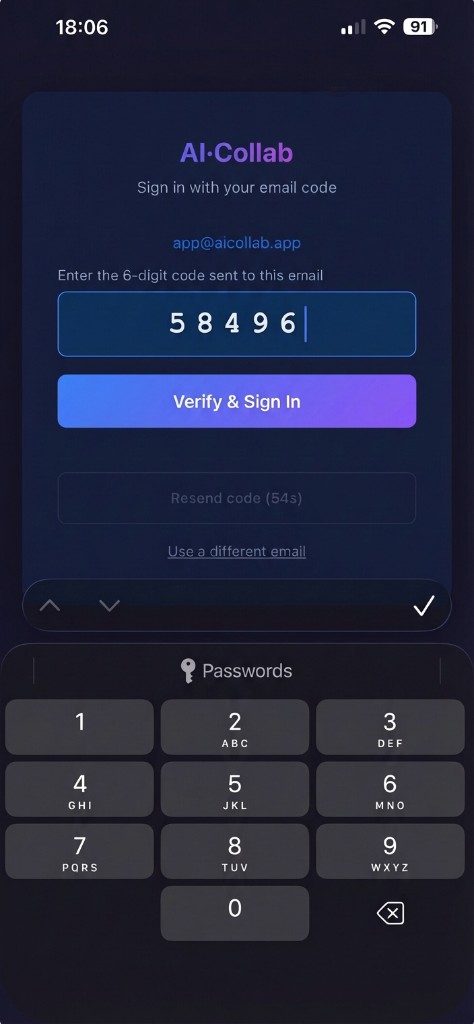
Enter Your Verification Code
Enter the 6-digit code from your email. The app auto-submits when you enter the last digit — no need to tap a button. If the code is valid and hasn't expired (10-minute window), you'll be logged in automatically.
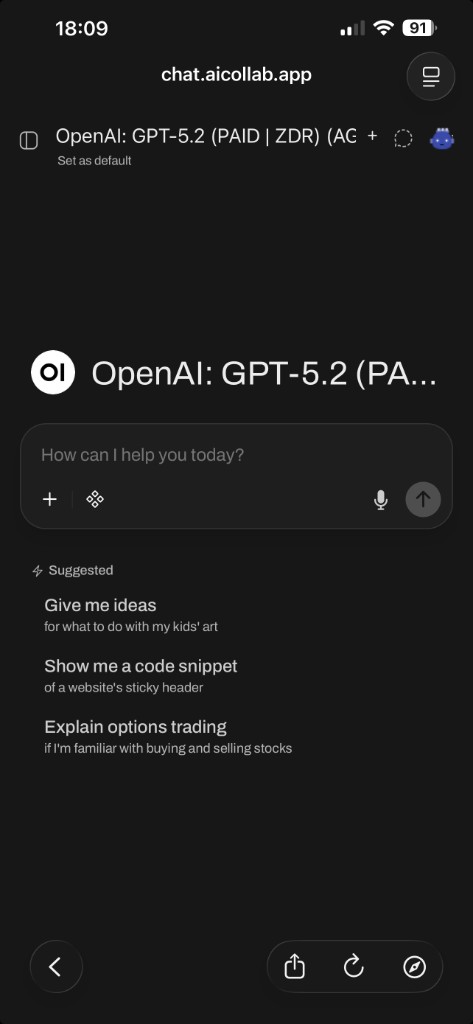
You're In — Enjoy AI·Collab Mobile!
That's it! You now have full access to AI·Collab on your phone. All 300+ AI models, your chats, knowledge bases, and settings — all in a beautiful native app experience. Choose any model and start chatting.
Sessions & Re-Authentication
Your session stays active as long as the authentication token is valid. Here's what to expect:
Session Expired?
If your session expires, simply re-open the app and repeat the email + code login. It takes just 30 seconds to get back in.
Already Logged In via Safari?
If you're already authenticated in Safari, the app may automatically recognize your session — you can start using it right away without entering a code.
Security & Privacy
The mobile app uses the same enterprise-grade security as the desktop version. Your data never leaves our secure infrastructure.
6-digit OTP codes
One-time codes expire after 10 minutes and can only be used once. No passwords stored on your device.
GDPR-compliant
Same Zero Data Retention (ZDRP) and EU-hosted infrastructure. Your prompts and responses are never stored or used for training.
Secure cookies
Authentication uses Secure, HttpOnly cookies with SameSite protection. Bridge HTML prevents token caching.
Supported Platforms
AI·Collab works as a mobile app on all major platforms. The install method varies slightly:
iOS (iPhone/iPad)
Safari → Share → Add to Home Screen
Android (Chrome)
Native install banner or Menu → Install
macOS / Windows
Chrome → Install icon in address bar
Android — Step by Step
On Android, Chrome supports PWA installation natively. You may even see an automatic install banner when you visit the site.
- Open Google Chrome on your Android device.
- Navigate to chat.aicollab.app.
- If a banner appears saying 'Add AI·Collab to Home screen', tap it and you're done!
- If no banner appears: tap the three-dot menu (⋮) in the top-right corner.
- Tap 'Install app' or 'Add to Home screen'.
- Confirm the name and tap 'Install' or 'Add'.
- The AI·Collab icon will appear on your home screen.
- Open the app and sign in with your registered email address.
- Enter the 6-digit OTP code sent to your inbox.
- You're in — enjoy AI·Collab on Android!
Unlike iOS, Android PWAs share cookies with Chrome. If you're already logged in to chat.aicollab.app in Chrome, the app may log you in automatically.
Windows & macOS — Desktop Installation
On desktop, Chrome and Microsoft Edge both support installing AI·Collab as a standalone app that runs in its own window — no tabs, no address bar.
Google Chrome (Windows / macOS / Linux)
- Open Google Chrome and navigate to chat.aicollab.app.
- Look for the install icon (⊕) in the right side of the address bar.
- Click 'Install' in the dialog that appears.
- AI·Collab opens in its own window and a shortcut is added to your desktop / Start menu / Launchpad.
- Sign in with your registered email and OTP code.
- Done — AI·Collab now runs as a native-feeling desktop app.
Microsoft Edge (Windows)
- Open Microsoft Edge and navigate to chat.aicollab.app.
- Click the three-dot menu (⋯) → Apps → Install this site as an app.
- Confirm the name and click 'Install'.
- AI·Collab opens in its own window. A shortcut is added to your Start menu.
- Sign in with your registered email and OTP code.
- Done — AI·Collab now runs like a native Windows app, complete with taskbar pinning.
On desktop, the PWA shares cookies with the browser. If you're already signed in to chat.aicollab.app, the desktop app will recognize your session automatically — no OTP needed.
Frequently Asked Questions
Learn More
The mobile app works with all AI·Collab features. Explore these related guides:
Related Articles
Privacy-First AI: Automatic PII Protection & Content Filtering
How AI·Collab protects your privacy with automatic PII redaction and content filtering — GDPR-compliant AI that puts security first.
Read moreNew: EU-based Routing & EU-hosted AI Models
European routing for EU-hosted model inference (Azure Sweden Central) — why it matters for GDPR, audits, and procurement.
Read moreFree Models: Exploring ZDR and Non-ZDR Options
Discover free AI models available on AI·Collab. Learn about ZDR vs Non-ZDR models, understand the pros and cons, and find out how to access them.
Read moreReady to Experience 300+ AI Models?
Get started today. Access models from OpenAI, Google, Anthropic, Grok and more.
GDPR compliant · Zero data retention · Cancel anytime