We Use Cookies
We use cookies to enhance your browsing experience, analyze site traffic, and personalize content. By clicking "Accept All", you consent to our use of cookies. You can customize your preferences or reject non-essential cookies.
Learn more about our cookie policyNEW: Google Drive & OneDrive Integration — Access Your Files Directly in Chat
Attach documents from your cloud storage with one click. Connect Google Drive and Microsoft OneDrive to AI·Collab for seamless file access.
Seamless Cloud Storage Integration
We're excited to announce a powerful new feature that makes working with AI even more convenient: direct integration with Google Drive and Microsoft OneDrive. No more downloading files to your computer just to upload them again. Access your cloud documents directly from the chat window with a single click.
How to Access Cloud Storage
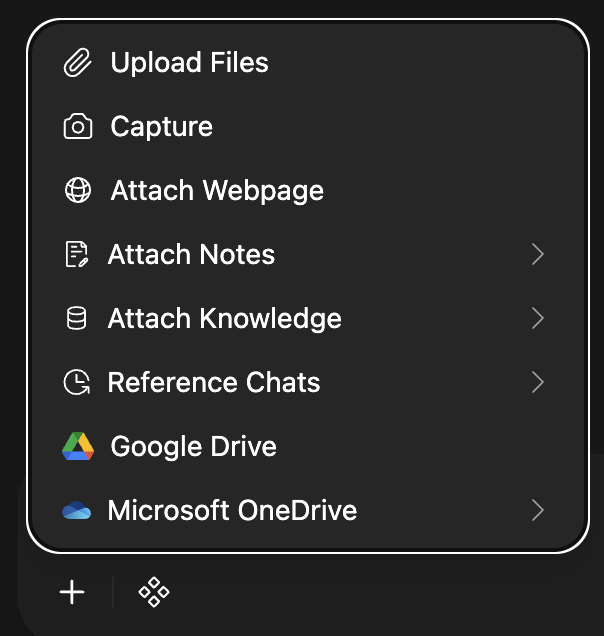
Click the '+' button in the chat window to access Google Drive and OneDrive files
How to Access Your Cloud Files
Accessing your cloud storage files in AI·Collab is simple:
Google Drive Integration
Connect your personal Google account to access all your Google Drive files, including Google Docs, Sheets, PDFs, and more.
Supported File Types:
- Google Docs (converted to text)
- Google Sheets (converted to CSV)
- PDF documents
- Images and photos
OneDrive Integration (Personal Accounts)
Connect your personal Microsoft account (Outlook.com, Hotmail.com) to access OneDrive files. Works with consumer Microsoft accounts.
Supported File Types:
- Office documents (Word, Excel, PowerPoint)
- PDF documents
- Images and photos
- Text files and more
One-Time Login Process
The first time you connect a cloud storage provider, you'll go through a simple authentication process:
Google Drive
Sign in with your Google account. You'll authorize AI·Collab to read files (read-only access). Your Google credentials are never stored on our servers.
Microsoft OneDrive
Sign in with your personal Microsoft account. Read-only access to your files. Your Microsoft credentials remain secure with Microsoft.
⚠️ Important: Disable Pop-up Blockers!
You must disable the pop-up blocker for your Open WebUI domain for the integration to work.
The OneDrive and Google Drive file pickers and authentication flows happen in a pop-up window. If nothing happens when you click a cloud storage option, your browser is almost certainly blocking pop-ups.
How to Fix:
- Look for a pop-up blocker icon in your browser's address bar
- Click it and select 'Always allow pop-ups from chat.aicollab.app'
- Refresh the page and try again
Note: Some browsers (like Chrome) may have additional restrictions compared to others (like Edge).
Why This Matters
No need to download and re-upload files. Access your documents where they already live.
OAuth authentication means we never see your password. Read-only access keeps your files safe.
Save time and clicks. Get straight to work with your AI assistant.
Use files from multiple sources: local uploads, Google Drive, and OneDrive—all in one place.
Ready to Try It?
Cloud storage integration is available now for all AI·Collab users. Start attaching files from Google Drive and OneDrive today!
Already using AI·Collab? Just click the '+' button in your next chat to try it out!
Related Articles
RAG Pipeline: How Your Documents Become AI Knowledge
Learn how AI·Collab transforms PDFs into accurate AI answers — from OCR to embedding, hybrid search, and EU-hosted reranking. All data stays in Europe.
Read moreMultiple Models in Tabs: Compare, Learn & Merge Results
Use multiple AI models simultaneously in separate tabs. Compare different perspectives, verify information, and merge the best insights into one comprehensive answer.
Read moreTwo Ways to Search the Web with AI: Native vs Plugin
Understand the difference between Native Agentic Search (Brave) and Exa Plugin Search. Learn which to use for best results.
Read moreReady to Experience 300+ AI Models?
Get started today. Access models from OpenAI, Google, Anthropic, Grok and more.
GDPR compliant · Zero data retention · Cancel anytime